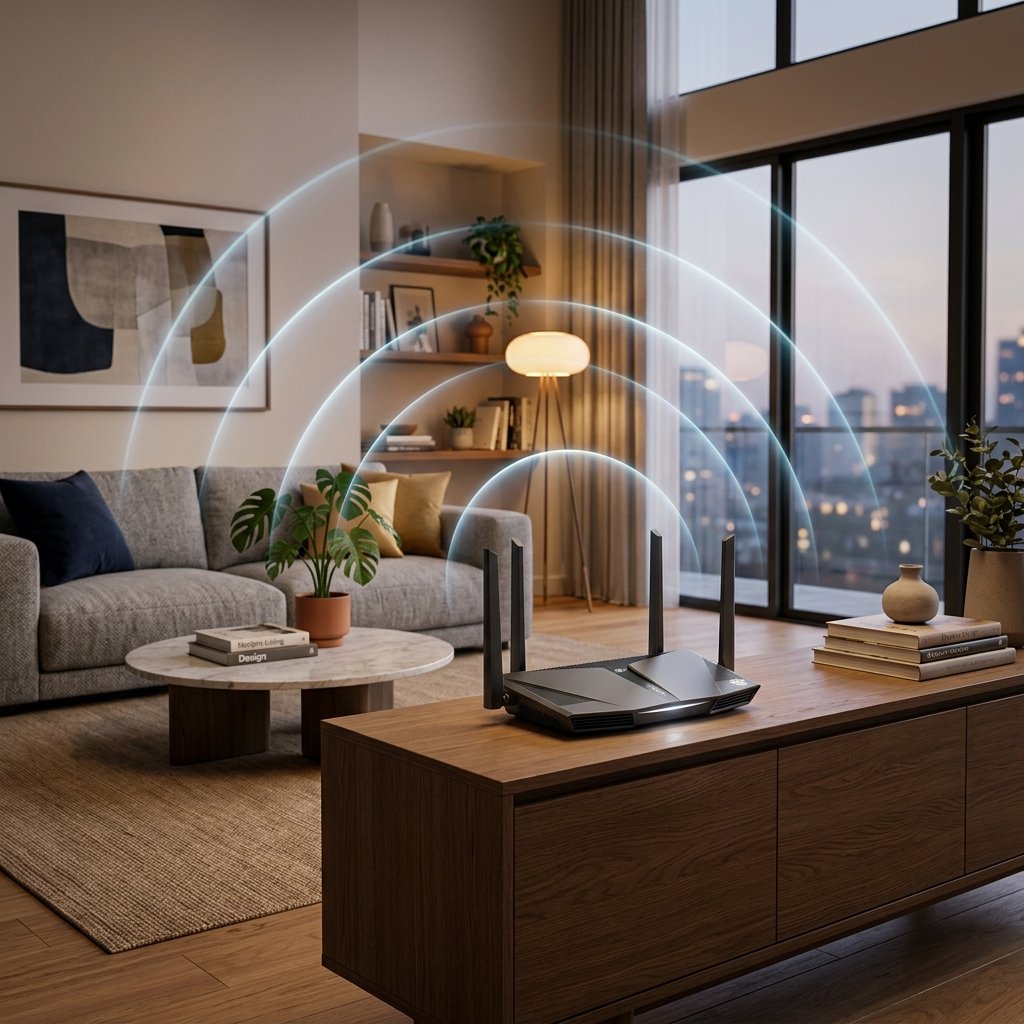
In most homes the router sits wherever the installer put it: next to where the line comes in, usually in a corner of the living room, at the bottom of a cupboard or behind the TV. That spot suits the installer, and rarely suits the signal.
Before you buy a booster or a new router, try what is in this guide. In many cases, moving the router a couple of metres and choosing the right network changes the result more than any new gadget.
Rule one: placement
- High up: signal spreads better sideways and downwards. A shelf at chest height is far better than the floor.
- In the open: not inside a wooden cabinet or behind the TV. TVs and large metal objects block a significant part of the signal.
- Central: if the router is at one end of the house, half the signal goes to the street or the neighbours.
- Away from the kitchen and bathroom: water in walls and pipes, metal appliances and especially microwaves all weaken the signal. Microwaves operate in roughly the same 2.4 GHz band, which is why Wi-Fi can drop while one is running.
- External antennas? If the router has adjustable antennas, point some vertically and some horizontally. Phones are held at all sorts of angles, and mixing orientations improves reception.
If you cannot move the router because the line enters at a fixed spot, run a flat Ethernet cable along the wall and put the router somewhere better. A cable of up to 30 metres causes no meaningful loss in speed.
2.4 or 5 GHz?
Most modern routers broadcast two networks, either with two names (for example "Home" and "Home_5G") or with one name, letting the router choose automatically.
| 2.4 GHz | 5 GHz | |
|---|---|---|
| Range | Further, better through walls | Shorter, fades quickly behind walls |
| Real-world speed | Usually 30–70 Mbps | 200–600 Mbps or more near the router |
| Congestion | Very crowded in apartment blocks | More channels, less interference |
| Best for | Smart devices, distant rooms | TV, laptop, gaming, anything near the router |
Rule of thumb: if the device is in the same room or the next one, use 5 GHz. If it is behind two or more walls, 2.4 GHz may give a steadier connection even though it is slower on paper. Try both and measure on the same device.
Many small smart devices, such as plugs and budget cameras, only support 2.4 GHz, so do not switch that network off entirely.
Choosing a channel in apartment blocks
If you live in an apartment, open the Wi-Fi list on your phone and count the networks. Twenty or more is common, and they all share the same airspace.
- On 2.4 GHz the only non-overlapping channels are 1, 6 and 11. Pick one of them and avoid the channels in between, which overlap with two at once.
- Set the 2.4 GHz channel width to 20 MHz in crowded areas. The 40 MHz option looks faster, but in apartment blocks it causes more interference and usually hurts.
- On 5 GHz the automatic setting usually works well. If you see short, repeated drop-outs, try a channel between 36 and 48, because some higher channels (DFS) may pause briefly to make way for radar systems.
Wi-Fi analyser apps on Android show you which channels are crowded around you and help you pick the quietest one.
When none of this is enough
In large homes, homes with several floors or thick stone walls, one router will not cover everything wherever you put it. The options, from best to worst:
- A second access point connected by cable: the best performance by far if running a cable is possible.
- A mesh system: several units acting as one network with one name, with your phone moving between them automatically. Excellent for large homes, especially systems with a dedicated band for linking the units.
- Powerline adapters: work well in some homes and badly in others, depending on the quality of the electrical wiring. Buy them somewhere that accepts returns.
- A traditional repeater: the cheapest option, but it often halves the speed because it receives and transmits on the same channel. Fine for browsing in a far room, not for gaming or 4K.